Xenix Device Manager User Manual
How to connect your time recorders, download punches, manage enrolled users and send attendance to the HR database or to HR Web (hr.xenix.com.my).
1How it works
Every punch is saved on this PC first. From there it is sent on to wherever your attendance is processed.
Devices
Downloaded over the network, USB cable or serial.
USB log files
Exported by a device to a USB stick.
Xenix cloud
Punches from cloud-connected kiosks.
This app's local store
Keeps every punch, even when the HR system can't be reached. A punch downloaded twice is stored once. Each punch remembers whether it has been sent.
HR database
SQL Server or Access (xpay.mdb): the TR attendance tables your payroll reads.
HR Web
hr.xenix.com.my, through the tenant's attendance webhook.
You can send to the HR database, to HR Web, or to both. Each destination keeps its own record of what was sent, so a punch reaches each one once.
The app also manages the people on your devices: it downloads and uploads fingerprints, faces, cards, PINs and photos, and keeps a copy of them on this PC.
2Getting started
What you need
- A Windows 10 or 11 PC on the same network as the devices (or a public address forwarded to them).
- The Microsoft Visual C++ 2010 x86 runtime. The device drivers need it, as the old F20 F22 F24 FP Manager did. Most PCs that ran the old app already have it.
- For the HR database: the SQL Server name and a login, or the path to the Access file.
- For HR Web: the tenant code and the tenant's attendance webhook secret.
Install
- Download
XenixDeviceManager-0.9.2-win-x86.zip(the download link is at the top of this manual) and unzip it into a folder such asC:\Xenix\DeviceManager. - Run
XenixDeviceManager.exe. There is nothing else to install. The sidebar shows the version at the bottom. - If Windows says a DLL is missing, install the Visual C++ 2010 x86 runtime and start the app again.
Where your data is kept
The app keeps its own data in %LOCALAPPDATA%\Xenix\DeviceManager. The path is shown at the bottom of the sidebar.
local.dbholds devices, punches, enrolled users and settings.logs\holds the app's diagnostic logs, kept for 30 days.
To back up, close the app and copy local.db. Passwords, API keys and the HR Web secret are stored encrypted for the Windows user who saved them. Another Windows user, or another PC, will need to enter them again.
Open the app once. Two copies on the same PC share one data file and would both run schedules.
Moving from the old app
The new app reads the old app's files but never changes them. Import in this order:
- Settings → Import from old app... → choose the old
Xenix.ini. This fills in the HR database and cloud settings. Test them, then Save changes. - Settings → Import from LogConfig.ini... to bring in USB log file formats.
- Devices → Import from old app... → choose
FPConfig.inito bring in the device list. - Enrollment → Import from old app ▾ → Enroll.mdb file... (with the
EnrollPhotofolder beside it) or Folder of .DAT files....
New logs only marks logs as read on the device. Whichever app reads first gets them; the other never sees them. Switch off the old app's automatic download before you start, or use All logs on device in this app. Repeats are skipped, so that is always safe.
3The window
The sidebar on the left switches between screens. Each screen's main actions sit at its top right.
| Part of the window | What it is |
|---|---|
| Sidebar | The screen list. The highlighted entry is the screen you are on. |
| Help (F1) | Bottom of the sidebar. Opens this manual in your web browser at the section for the screen you are on. Pressing F1 anywhere in the app does the same. Needs an internet connection. |
| Version | Bottom of the sidebar. Quote it when asking for help. |
| Data | Bottom of the sidebar: the folder where this PC keeps the app's data. |
| Page title | Top left of each screen. |
| Action buttons | Top right of each screen. The filled (green) button is the main action. |
| Last run | On Attendance Logs, Enrollment and Photos: the result of the last action, one line per device or step. Red lines are problems. |
| Progress line | Above the results while a job runs, for example HR Web: 120 of 678 done. |
While a job runs, the screen's controls are disabled until it finishes. Every job is also recorded on the Activity screen.
Date boxes show dates as 1 Oct 2026, whatever the PC's date setting. Click the calendar icon to pick a date, or type one such as 1 Jan 2026.
4Dashboard
The first screen you see: are the devices reachable, and is anything waiting. Press Check all devices to contact them.
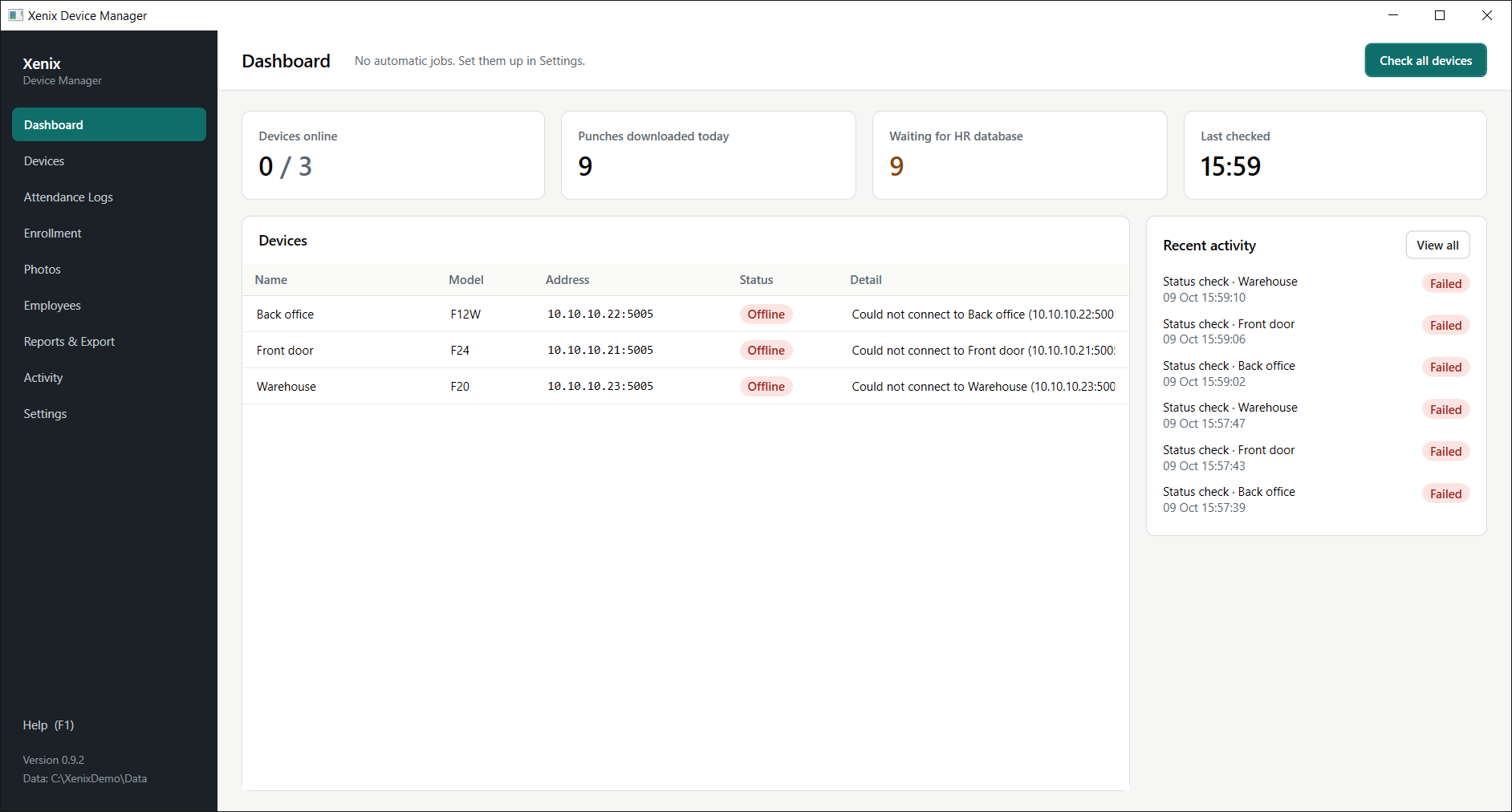
Top of the screen
| Item | What it shows or does |
|---|---|
| Check all devices | Contacts every active device now and refreshes the table below. |
| Schedule line | Under the title: when each schedule runs next, for example Next: log download at 10:35. It says No automatic jobs when none are on. |
Number tiles
| Tile | Meaning |
|---|---|
| Devices online | Active devices that answered the last check, out of all active devices. |
| Punches downloaded today | New punches stored today from devices, USB files and the cloud. |
| Waiting for HR database | Punches not yet written to the HR database, including failed ones that will be retried. HR Web has its own column on Attendance Logs. |
| Last checked | When the devices were last contacted. |
Devices table
| Column | Meaning |
|---|---|
| Name | The device's name from the Devices screen. |
| Model | Its model. |
| Address | IP address and port, USB, or COM port. |
| Status | Not checked, Checking, Online or Offline. |
| Detail | For an online device, how far its clock is from this PC (Clock in sync, Clock 42 s behind). For an offline one, the reason. |
Recent activity
The latest jobs with their result. View all opens the Activity screen.
5Devices
Every device the app talks to. The list is on the left; the selected device's settings are on the right.
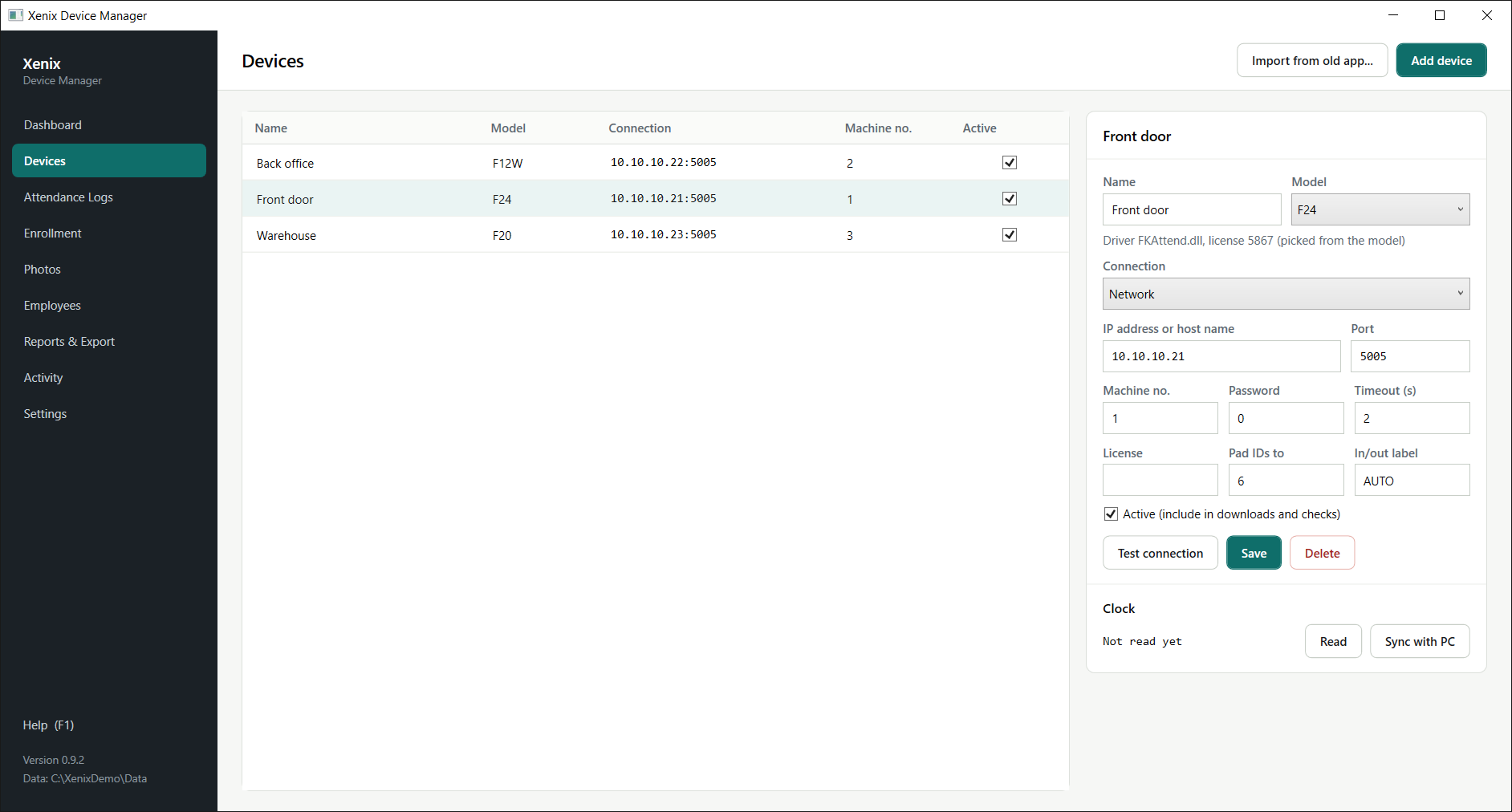
Buttons and list
| Item | What it does |
|---|---|
| Import from old app... | Reads the old app's FPConfig.ini and adds its devices. Devices with a name already in the list are skipped. |
| Add device | Starts a new, empty device on the right. |
| Device list | Columns Name, Model, Connection (address), Machine no. and Active. Click a row to edit that device. |
Device settings
| Field | What to enter |
|---|---|
| Name | A name you recognise, such as Front door. It appears in punch lists and reports, and it is the device name HR Web shows. Renaming a device makes HR Web list it as a new device. |
| Model | The model on the device's label. It decides which driver and license are used. See the table below. |
| Connection | Network (most devices), USB cable, or Serial (RS-232/485). |
| IP address or host name, Port | For network devices. The port is usually 5005. |
| COM port, Baud rate | For serial devices. Must match the device's menu. |
| Machine no. | The device number set in the device's menu, usually 1. |
| Password | The device's communication password, if one is set. Usually 0. |
| Timeout (s) | How long to wait for an answer. Raise it for slow links or devices reached over the internet. |
| License | Leave blank to use the model's license. Needed only for F25, or if Xenix gives you a different one. |
| Pad IDs to | Pads enroll IDs with zeros to this length so they match card numbers in the HR database (for example 24 becomes 000024 at length 6). |
| In/out label | AUTO, IN or OUT. Written to tr_transdesc in the HR database. For HR Web, IN and OUT make every punch from this device a clock-in or a clock-out; AUTO lets HR Web decide from the times. Use IN or OUT only for a device that is used solely for entry or solely for exit. |
| Active | Ticked devices appear in download lists, device checks and schedules. Untick devices that are gone or not in use; their stored punches are kept. |
Press Test connection to check the settings, then Save. Delete removes the device from the app; it does not change the device itself.
Clock
Read shows the device's time. Sync with PC sets it to this PC's time. To keep clocks right automatically, turn on the clock sync schedule in Settings.
Models
| Model | Family | Notes |
|---|---|---|
| F20 | F20 (ST) | Has user roles 1–5. |
| F21 | FK (F21) | Records body temperature. |
| F22, F24 | FK | Record body temperature. F24 takes user photos. |
| F25 | FK | Takes user photos. Enter the license from Xenix in the License field. |
| F1, F23 | FK | |
| F7, F9, F10, F11, F12, F12W | FK | Common time recorders. |
The family matters for fingerprints and faces: templates made on an F20 cannot be used on FK devices, and the other way round. See Enrollment.
6Attendance Logs
Bring punches into the app and send them on. The top panel has four tabs; the list below shows the latest 1,000 stored punches.
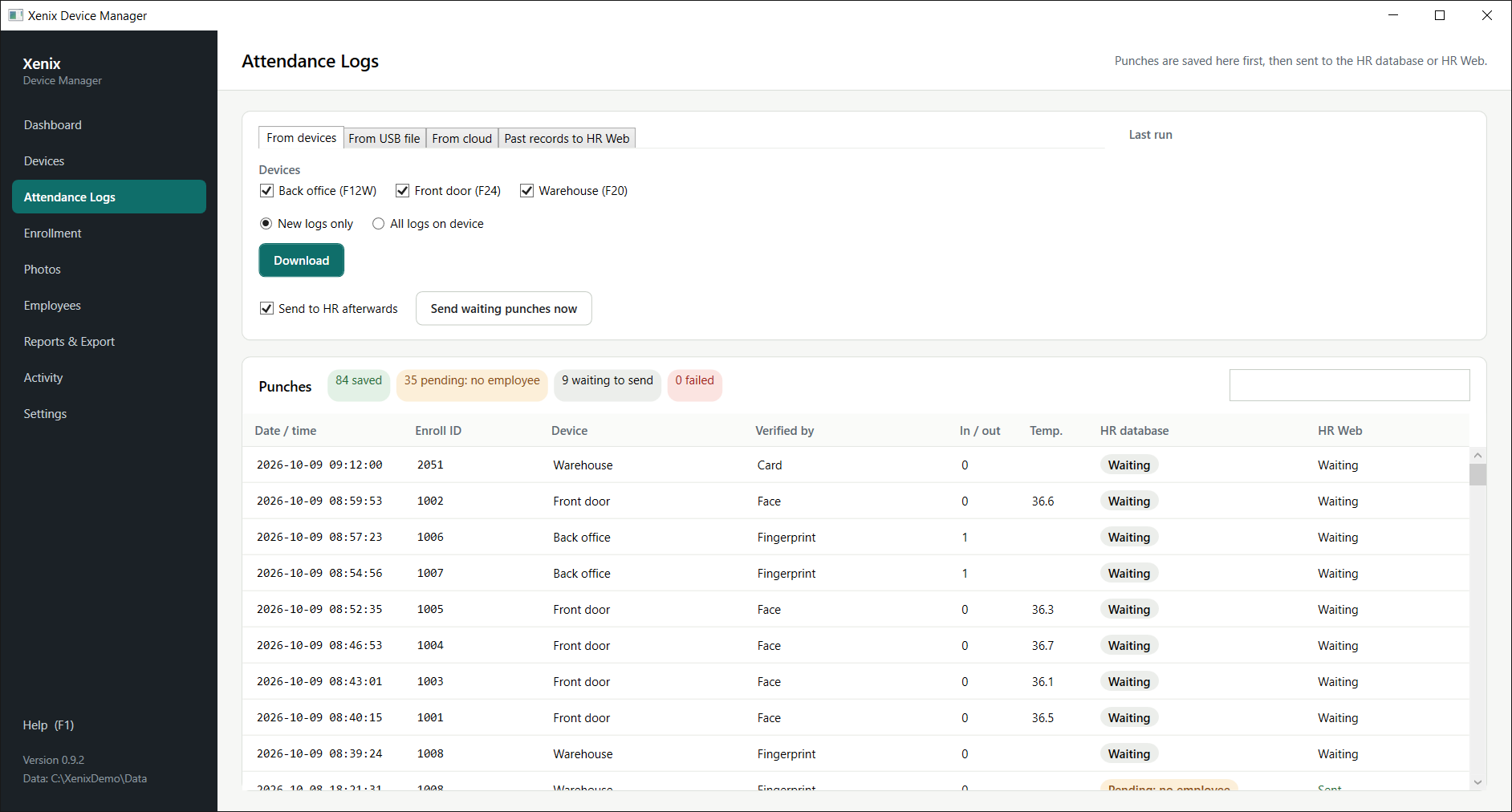
From devices
- Tick the devices to download from.
- Choose New logs only (punches the device hasn't handed out yet) or All logs on device (everything it holds). Punches already stored are skipped either way.
- Press Download. Each device's result appears under Last run, for example F12TEST: 7569 read, 4 new, 7565 already downloaded.
From USB file
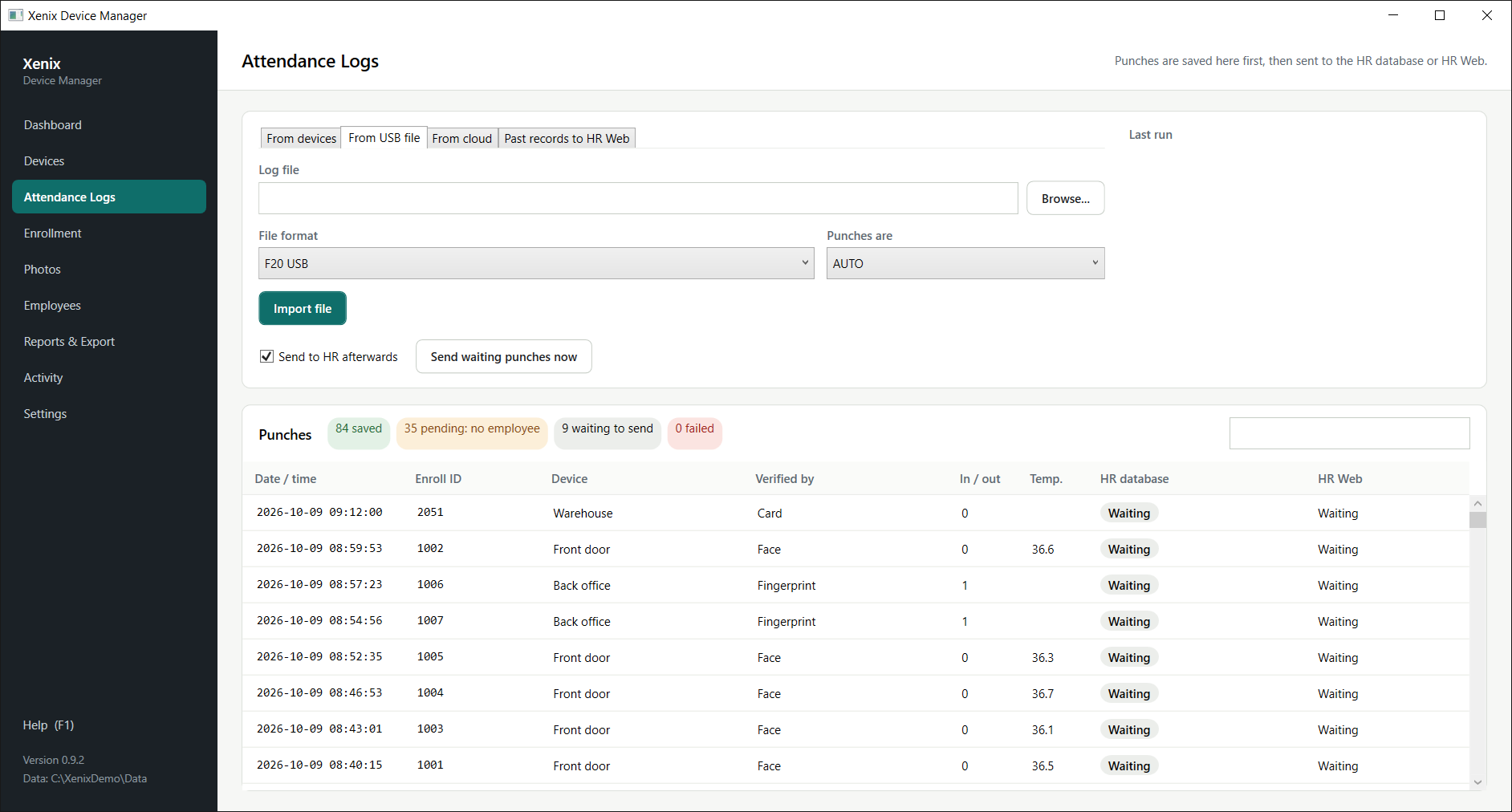
- Press Browse... and choose the log file from the USB stick.
- Pick the File format. Formats are set up in Settings.
- Choose whether the punches are AUTO, IN or OUT.
- Press Import file. Lines that can't be read are listed and skipped; the rest are stored.
From cloud
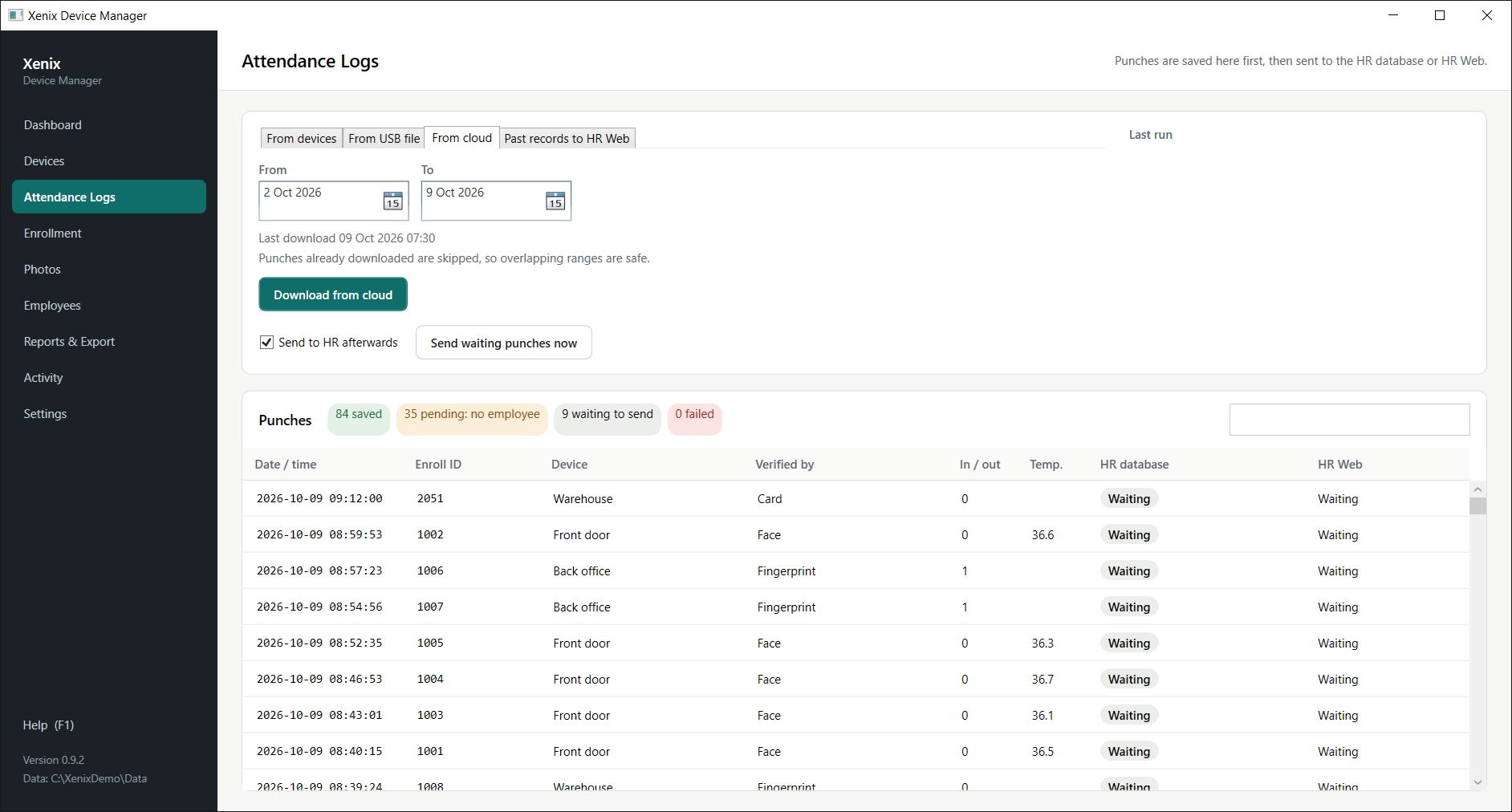
Pick From and To dates and press Download from cloud. Overlapping ranges are safe because repeats are skipped. The tab is available once the cloud API is set up in Settings.
Past records to HR Web
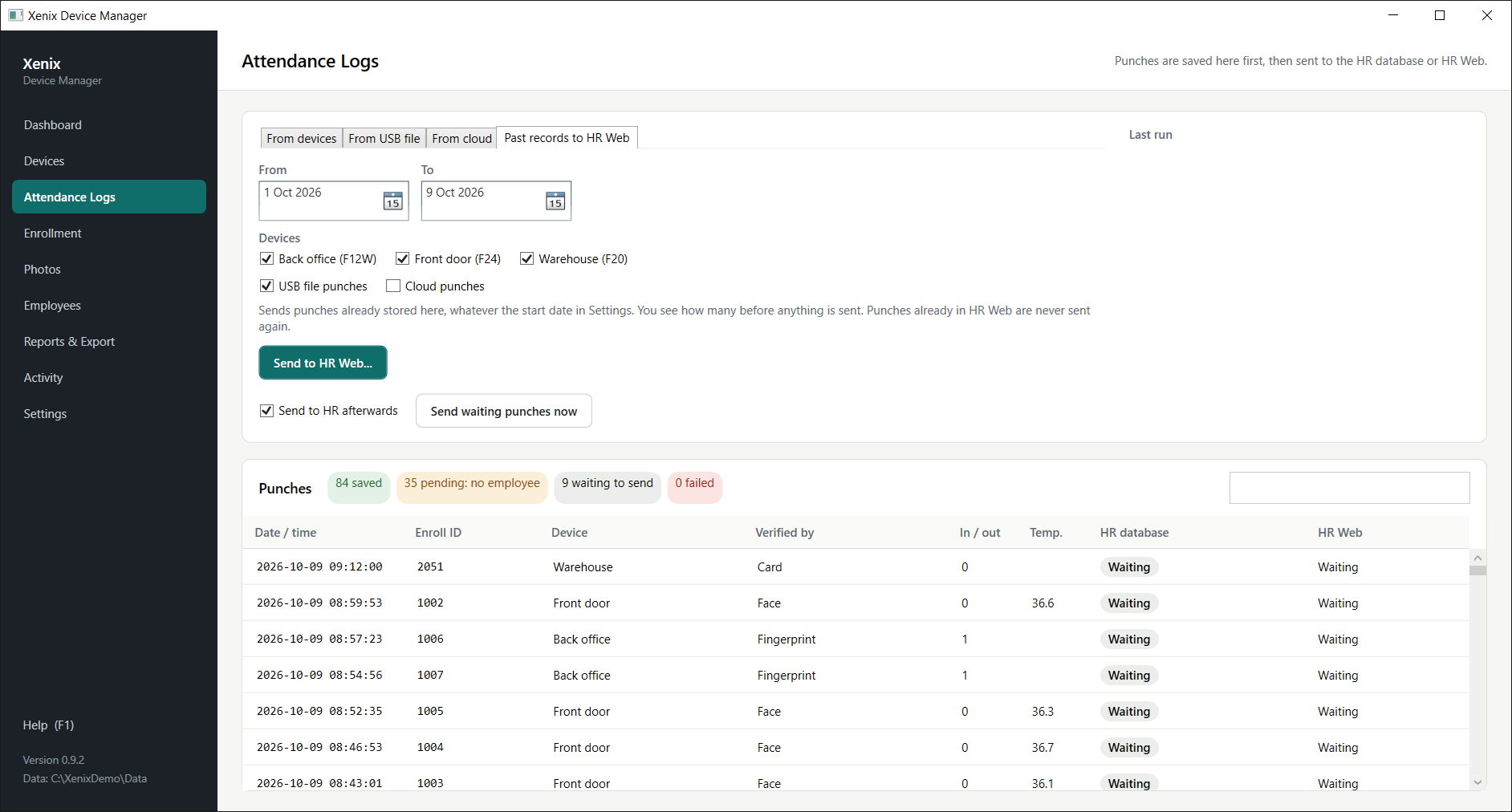
Sends punches already stored here for a chosen date range. See Sending past records.
Sending after a download
- Send to HR afterwards: when ticked, every download or import is followed by a send to the HR database and HR Web, whichever are switched on. It is greyed out while both are off.
- Send waiting punches now: sends whatever is waiting, including punches that failed before.
Past records to HR Web tab, item by item
| Item | What it does |
|---|---|
| From, To | The first and last day to send. Both days are included. |
| Devices | Which devices' punches to send. All devices are listed, inactive ones too. |
| USB file punches | Also send punches imported from USB files in that range. |
| Cloud punches | Also send punches downloaded from the cloud in that range. |
| Send to HR Web... | Counts what would go and asks before sending. See Sending past records. |
The tab says when HR Web sending is off; switch it on in Settings first.
Counters above the list
| Chip | Counts |
|---|---|
| saved | Punches written to the HR database's TR tables. |
| pending: no employee | Punches written to TRPENDING. |
| waiting to send | Punches not yet written to the HR database. |
| failed | Punches whose last write failed. They are retried. |
These count the HR database. The search box on the right filters the list by enroll ID or device name.
The punch list
The newest 1,000 stored punches, newest first.
| Column | Meaning |
|---|---|
| Date / time | When the person punched, by the device's clock. |
| Enroll ID | The user's number on the device. |
| Device | The device name, or USB file · device 1, or Cloud · name. |
| Verified by | How the person verified: Fingerprint, Face, Card, Password, or a combination such as Card + Fingerprint. |
| In / out | The raw in/out value the device stored. Many time recorders store the same value for every punch, so the app doesn't rely on it; see Clock-in and clock-out. |
| Temp. | Body temperature, for devices that measure it (F21, F22, F24). |
| HR database | Where the punch is in its trip to the HR database. Hover for the table it went to or the error. |
| HR Web | Where the punch is in its trip to HR Web. Hover for the reason when skipped or failed. |
All statuses are explained in the Status reference.
7Enrollment
The people on your devices, with their fingerprints, faces, cards, PINs and photos. The app keeps a copy of everything it downloads, so users can be moved to new or replaced devices.
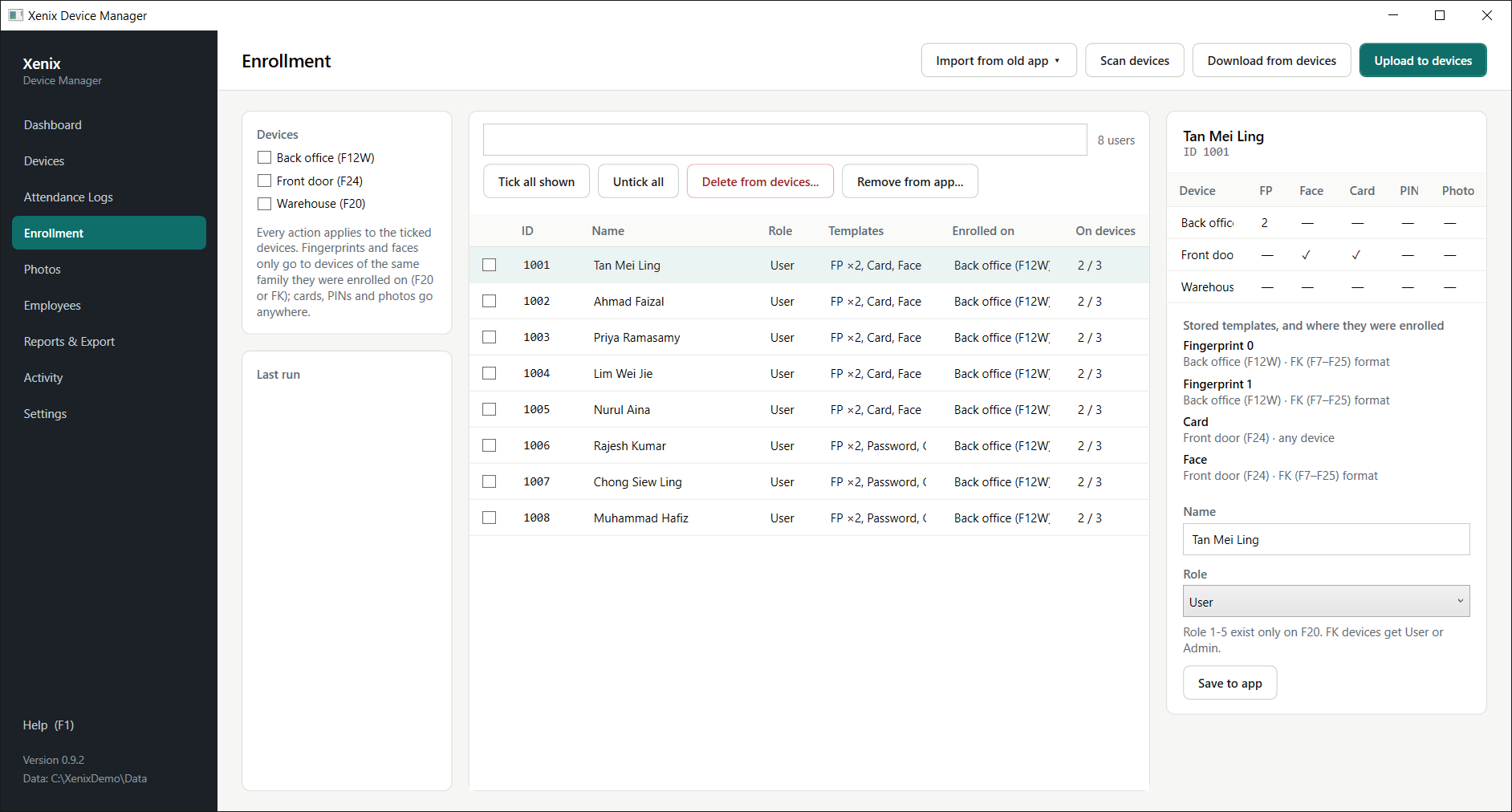
Left panel: devices and results
| Item | Meaning |
|---|---|
| Devices | Tick the devices an action should use. Every button on this screen works on the ticked devices. |
| Last run | The result of the last action, per device and per user. Red lines are problems. |
Middle panel: users
| Item | Meaning |
|---|---|
| Search box | Shows only users whose ID or name contains what you type. |
| Count | How many users are shown and ticked. |
| Tick box | Ticks the user for the next action. |
| ID | The enroll ID. Sorted as numbers, so 2 comes before 10. |
| Name | The name stored in the app (from the device, Enroll.mdb, or typed here). |
| Role | User, Admin, or Role 1–5 (F20 only). |
| Templates | What the app has stored for the user, such as FP ×2, Card, Face (two fingerprints, a card and a face). In the right panel, fingerprints are numbered from 0. |
| Enrolled on | Which device or file each stored template came from, such as Lobby (F24), F20 or Enroll.mdb. Tells you which family the fingerprints belong to. |
| On devices | How many devices hold this user, as last seen by Scan or Download. |
Right panel: selected user
| Item | Meaning |
|---|---|
| Templates per device | One row per device holding the user. FP is the number of fingerprints; Face, Card, PIN and Photo show whether the device holds one. |
| Stored templates, and where they were enrolled | Each stored template with its source and the devices it can go to: any device, F20 only, FK (F7–F25) format, or format unknown for old file imports. |
| Name, Role | Edit the user's name and role in the app. |
| Save to app | Saves the name and role. Upload to put them on devices. |
A user seen on a device but never downloaded shows Seen on a device but not downloaded yet. Use Download from devices to store them.
Actions
| Button | What it does |
|---|---|
| Import from old app ▾ | Enroll.mdb file... reads the old app's enrollment database, with the EnrollPhoto folder beside it. Folder of .DAT files... reads files saved by the old file-based enrollment screen. Choose whether to replace users already stored. |
| Scan devices | Lists who is on the ticked devices, without downloading templates. Quick. |
| Download from devices | Copies users and all their templates from the ticked devices into the app. |
| Upload to devices | Sends the ticked users from the app to the ticked devices. |
| Delete from devices... | Removes the ticked users from the ticked devices. The app's copy is kept. Asks first. |
| Remove from app... | Deletes the app's copy of the ticked users. Devices are not changed. |
| Tick all shown / Untick all | Ticks the users currently shown by the search box. |
| Save to app | Saves the edited name and role of the selected user. |
Fingerprints and faces only go to devices of the same family they were enrolled on: F20 to F20, FK to FK. A user enrolled on an F20 has to enrol again on FK devices, and the other way round. Cards, PINs and photos go to any device.
The upload result says when a template was held back for this reason.
Roles 1–5 exist only on F20. FK devices receive User or Admin.
8Photos
Upload user photos to F24 and F25 devices. Other models don't take photos.
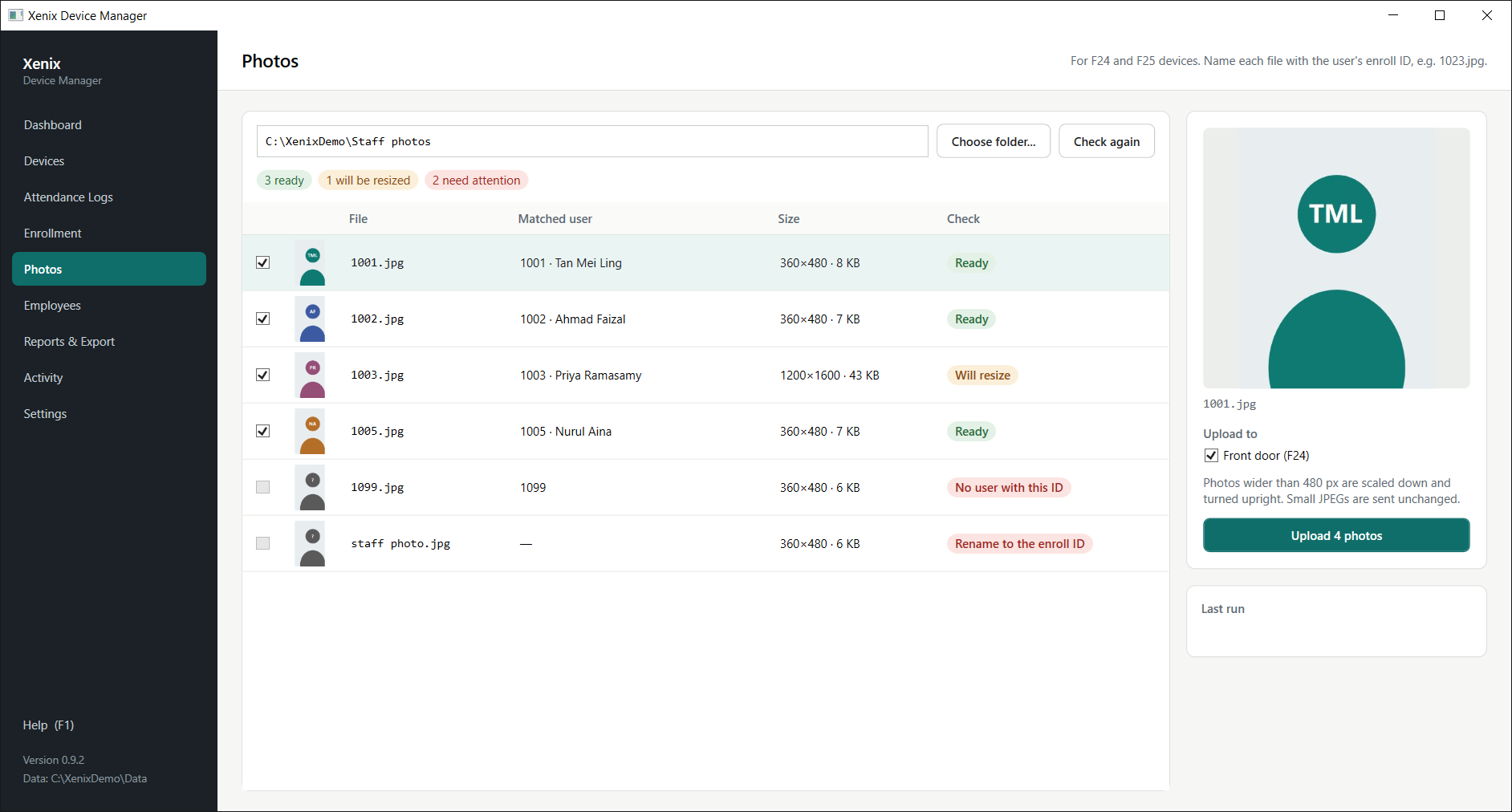
| Item | What it does |
|---|---|
| Choose folder... | Picks the folder holding the photos. Each file is matched to a user and checked. |
| Check again | Re-reads the folder after you add, rename or replace files. |
| Tick box | Includes the photo in the upload. Photos that can't be sent can't be ticked. |
| File | The file name. It must be the user's enroll ID, for example 1023.jpg. |
| Matched user | The enrolled user with that ID, and their name. |
| Size | Width × height in pixels, and file size. |
| Check | Ready: sent as it is. Will resize: scaled down or turned upright first. Rename to the enroll ID: the name isn't a number. No user with this ID: download or import the user first. Not a readable image: the file is damaged or not a picture. |
| Upload to | The F24 and F25 devices to send to. |
| Upload photos | Sends the ticked photos to the ticked devices after asking. A user's existing photo on the device is replaced. The photo is also stored in the app. |
| Last run | The result per device and photo. |
Photos wider than 480 px are scaled down and turned upright. Small JPEGs are sent unchanged. If no F24 or F25 is set up, the screen says so instead.
9Employees
Links device users to employees in the HR database. It needs the HR database set up in Settings; until then the screen says HR database not set up. Refresh reads the database again.
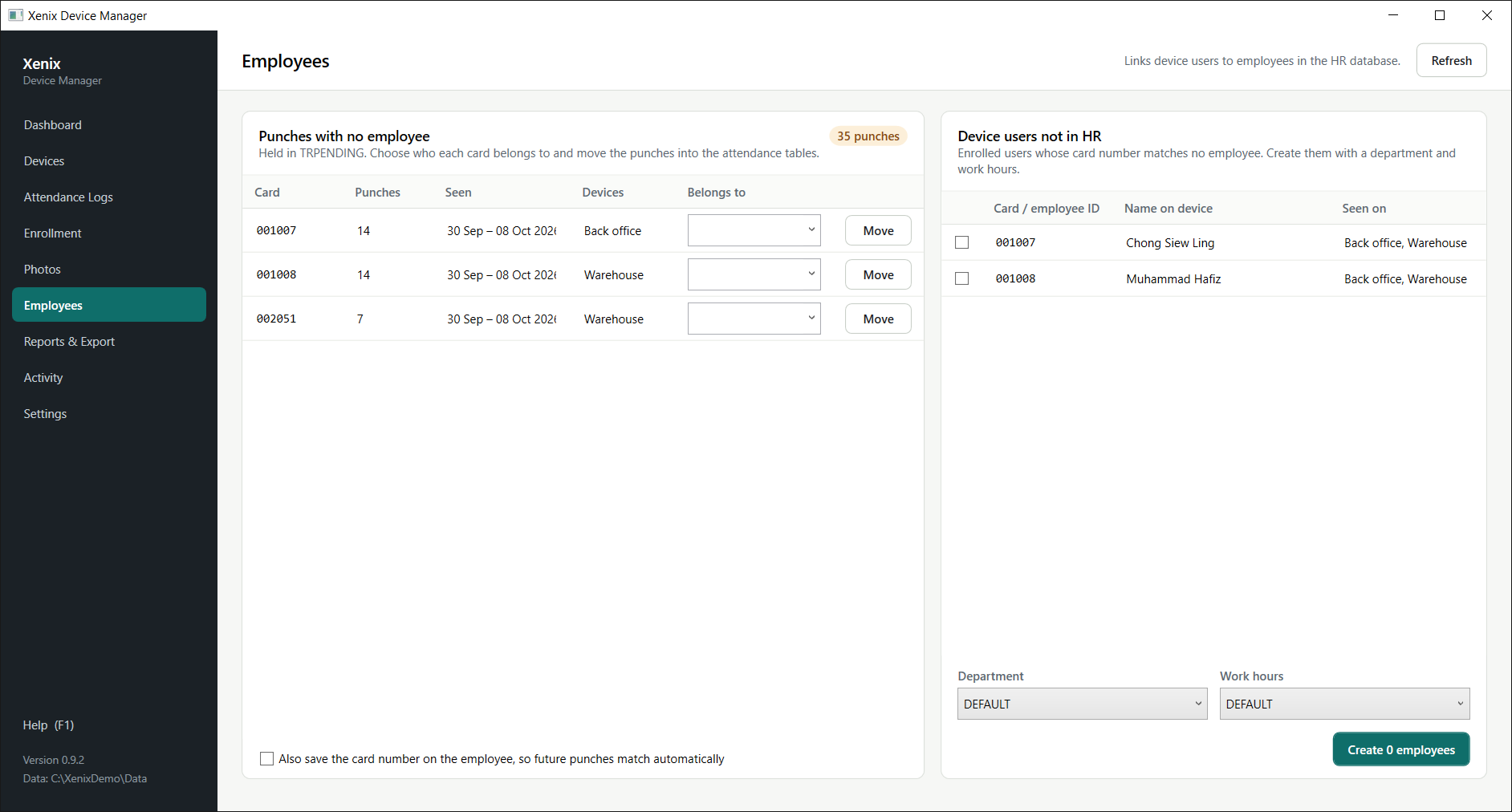
Punches with no employee
Punches whose card number matches no employee wait in TRPENDING. One row per card number:
| Item | Meaning |
|---|---|
| Card | The card number on the waiting punches. |
| Punches | How many punches are waiting for it. |
| Seen | The first and last punch dates. |
| Devices | Which devices recorded them. |
| Belongs to | Choose the employee this card belongs to. |
| Move | Moves that card's punches into the attendance tables under the chosen employee. |
| Also save the card number on the employee | Stores the card number on the employee too, so future punches match automatically. |
When nothing is waiting, the screen says Every punch has a matching employee.
Device users not in HR
Enrolled users whose card number matches no employee:
| Item | Meaning |
|---|---|
| Tick box | Includes the user when creating employees. |
| Card / employee ID | The card number the new employee will have. |
| Name on device | The name stored for the user. |
| Seen on | The devices that hold the user. |
| Department, Work hours | Given to every employee created in this step. |
| Create employees | Creates the ticked users as employees in the HR database, after asking. The button shows how many are ticked. |
10Reports & Export
Attendance as an Excel or CSV file. Excel doesn't need to be installed.
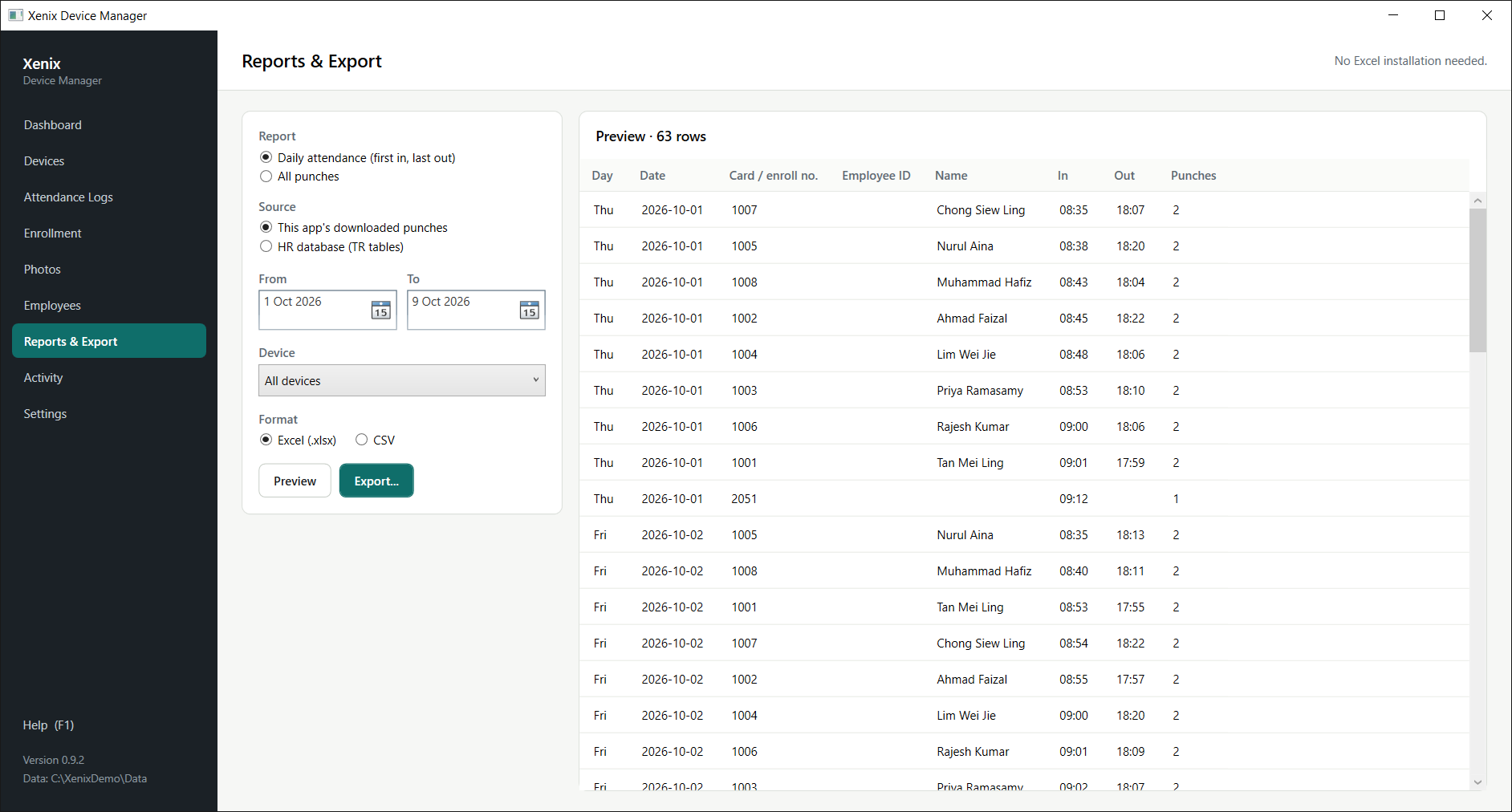
| Item | What it does |
|---|---|
| Report: Daily attendance (first in, last out) | One row per person per day: day, date, card or enroll number, employee ID, name, In (first punch), Out (last punch) and the number of punches. |
| Report: All punches | Every punch, one per row. |
| Source: This app's downloaded punches | Punches stored in this app. |
| Source: HR database (TR tables) | What is in the HR database, including punches written by other programs. Needs the HR database set up. |
| From, To | The dates to cover, both included. |
| Device | All devices, or one. |
| Format | Excel (.xlsx) or CSV. |
| Preview | Shows the report on screen first. |
| Export... | Saves the file where you choose. |
| Show file in folder | Opens the folder with the file just saved. |
Names come from the users stored on the Enrollment screen, or from the HR database when that is the source.
11Activity
Every job the app ran: downloads, uploads, sends, imports, clock syncs and scheduled runs.
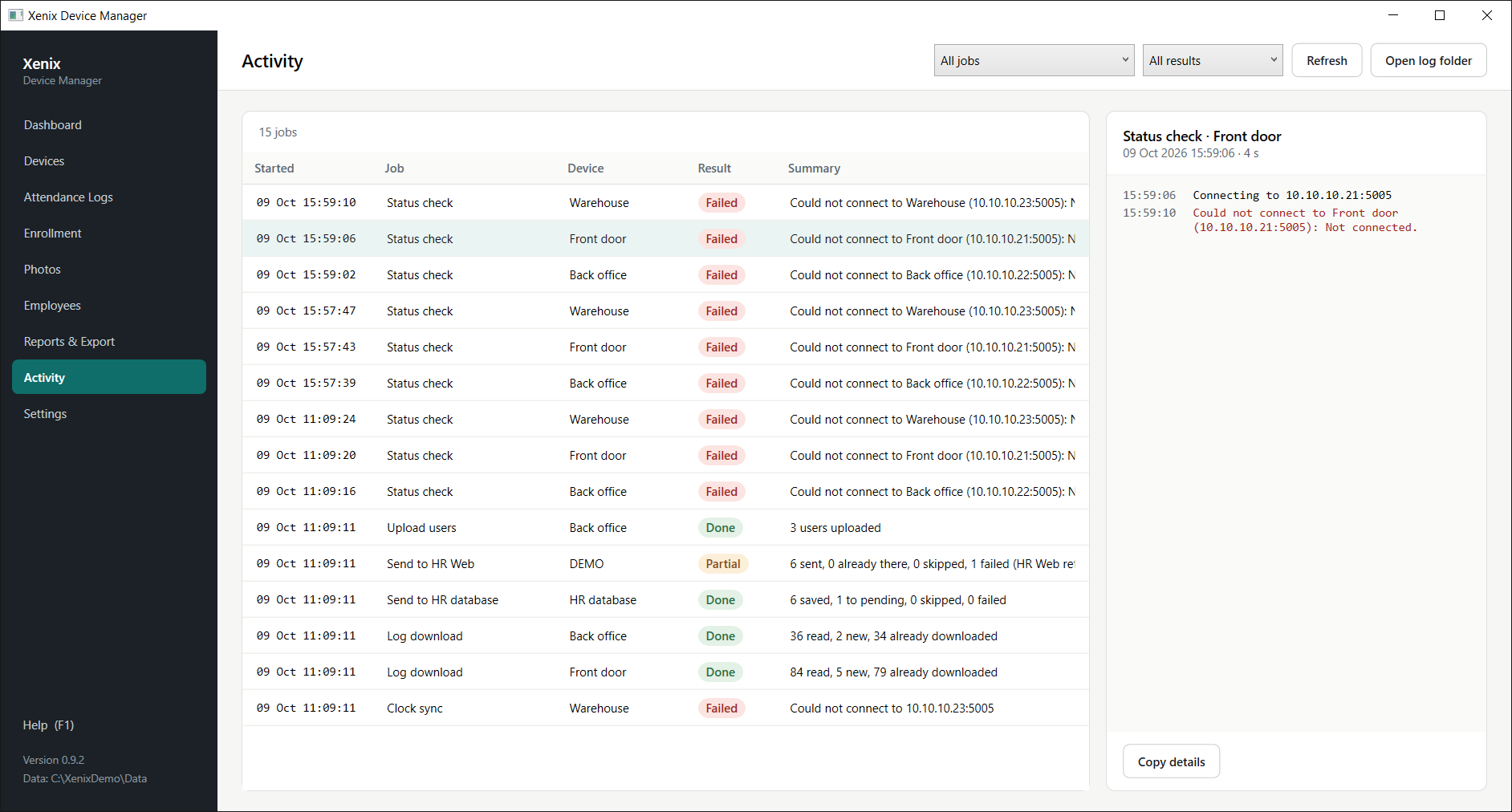
| Item | What it does |
|---|---|
| Refresh | Loads the latest jobs. |
| Open log folder | Opens the app's diagnostic log files. Send the newest one with any crash report. |
| Job filter | Shows only one kind of job, such as Log download or Send to HR Web. |
| Result filter | All results, Done, Partial, Failed or Running. |
| Started | When the job began. |
| Job | What ran. Scheduled jobs start with Scheduled. |
| Device | The device, file, database or tenant it worked on. |
| Result | Done, Partial (some steps failed), Failed or Running. |
| Summary | The outcome in one line. |
| Job details | Below the list: every step of the selected job, with times. Errors are red. |
| Copy details | Copies the selected job's details for an email or support message. |
12Settings
Nothing changes until you press Save changes at the top right. After saving, or when something is wrong, a message appears at the top of the screen: green when all is well, red with what to fix.
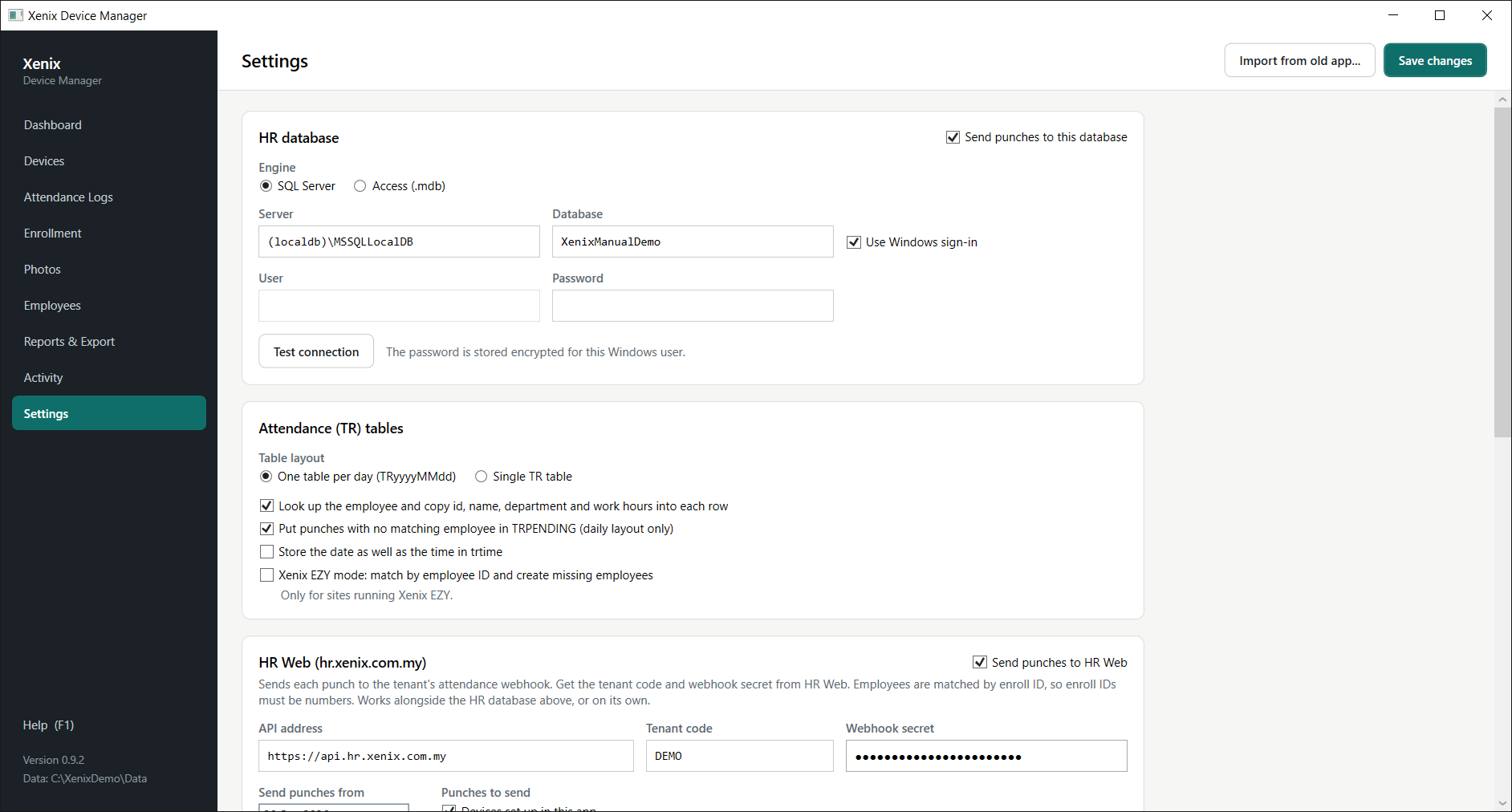
| Button | What it does |
|---|---|
| Import from old app... | Reads the old Xenix.ini and fills in the HR database and cloud fields. Check them, test, then save. |
| Save changes | Saves every section on this screen. |
HR database
| Field | What it does |
|---|---|
| Send punches to this database | The on/off switch for the HR database. |
| Engine | SQL Server or Access (.mdb). |
| Server | SQL Server only. For example OFFICE-PC\SQLEXPRESS or 192.168.0.22,1433. |
| Database | SQL Server only. The payroll database name. |
| Use Windows sign-in | SQL Server only. Sign in as the current Windows user instead of a SQL login. |
| User, Password | SQL Server login. The password is stored encrypted. |
| Access database file | Access only. The path to the .mdb, such as xpay.mdb. Browse... picks it. |
| Test connection | Connects and checks the employee table is there. |
Attendance (TR) tables
| Option | Effect |
|---|---|
| One table per day / Single TR table | Write to daily tables named TRyyyyMMdd, or to one table called TR. Use what your payroll expects. |
| Look up the employee… | Copies the employee's id, name, department and work hours into each row. |
| Put punches with no matching employee in TRPENDING | Unmatched punches wait in TRPENDING (daily layout only). Sort them out on the Employees screen. |
| Store the date as well as the time in tr_time | For payroll systems that expect a full date and time. |
| Xenix EZY mode | Matches by employee ID and creates missing employees. Only for sites running Xenix EZY. |
HR Web (hr.xenix.com.my)
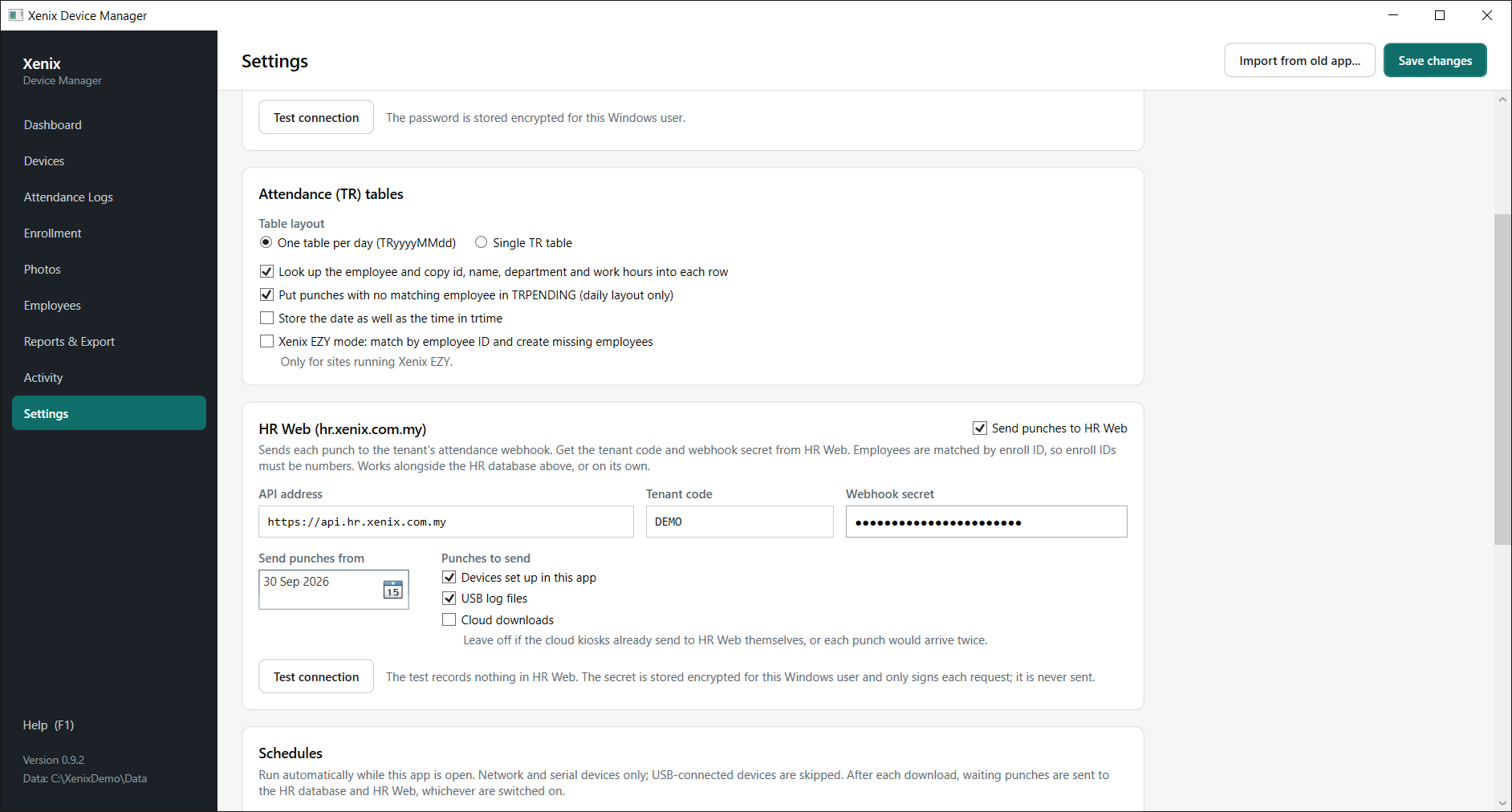
| Field | What it does |
|---|---|
| Send punches to HR Web | The on/off switch for HR Web. While it is off, nothing is sent. |
| API address | Leave as https://api.hr.xenix.com.my. |
| Tenant code | Which company in HR Web receives the punches. Xenix gives you this code. |
| Webhook secret | Proves the punches come from you. It signs each request and is never sent itself. Stored encrypted. |
| Send punches from | Automatic sending only covers punches on or after this date. Normally the day you switch sending on. Past records are sent separately; see section 13. |
| Punches to send | Which kinds of punch automatic sending covers: devices, USB log files, cloud downloads. Leave cloud off if the cloud kiosks already send to HR Web themselves. |
| Test connection | Checks the address, tenant code and secret. Records nothing in HR Web. |
Schedules
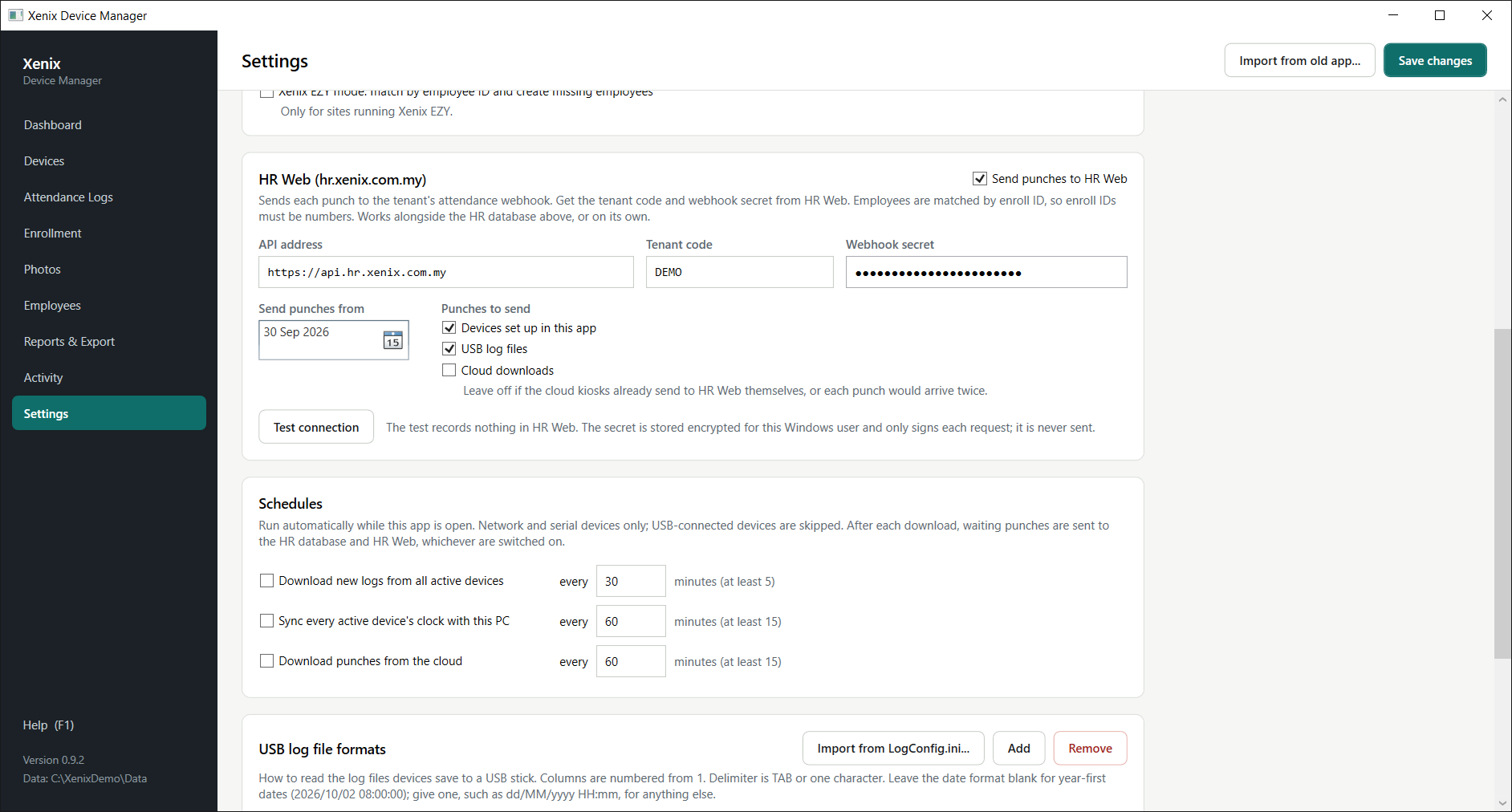
Jobs that run by themselves while the app is open. Network and serial devices only; USB-connected devices are skipped. After each download, waiting punches are sent to the HR database and HR Web, whichever are on.
| Schedule | Shortest interval |
|---|---|
| Download new logs from all active devices | 5 minutes |
| Sync every active device's clock with this PC | 15 minutes |
| Download punches from the cloud | 15 minutes |
The Dashboard shows when each schedule runs next. Schedules stop when the app is closed.
USB log file formats
How to read the files devices save to a USB stick. One row per format; edit the cells directly. Columns are numbered from 1.
| Column or button | Meaning |
|---|---|
| Import from LogConfig.ini... | Adds the formats from the old app's LogConfig.ini. Check each one against a real file. |
| Add, Remove | Adds a new format, or removes the selected one. |
| Name | What you pick on the USB tab of Attendance Logs. |
| Delimiter | TAB, or one character such as ,. |
| First line | The first line holding a punch (2 skips a heading line). |
| Date col | The column with the date and time. |
| ID col | The column with the enroll ID. |
| Verify col | The column with the verify mode, if any. |
| Device col | The column with the device number, if any. |
| Pad ID to | Pads enroll IDs with zeros to this length. |
| Date format | Blank for year-first dates such as 2026/10/02 08:00:00. Otherwise the pattern, such as dd/MM/yyyy HH:mm. |
Xenix cloud API
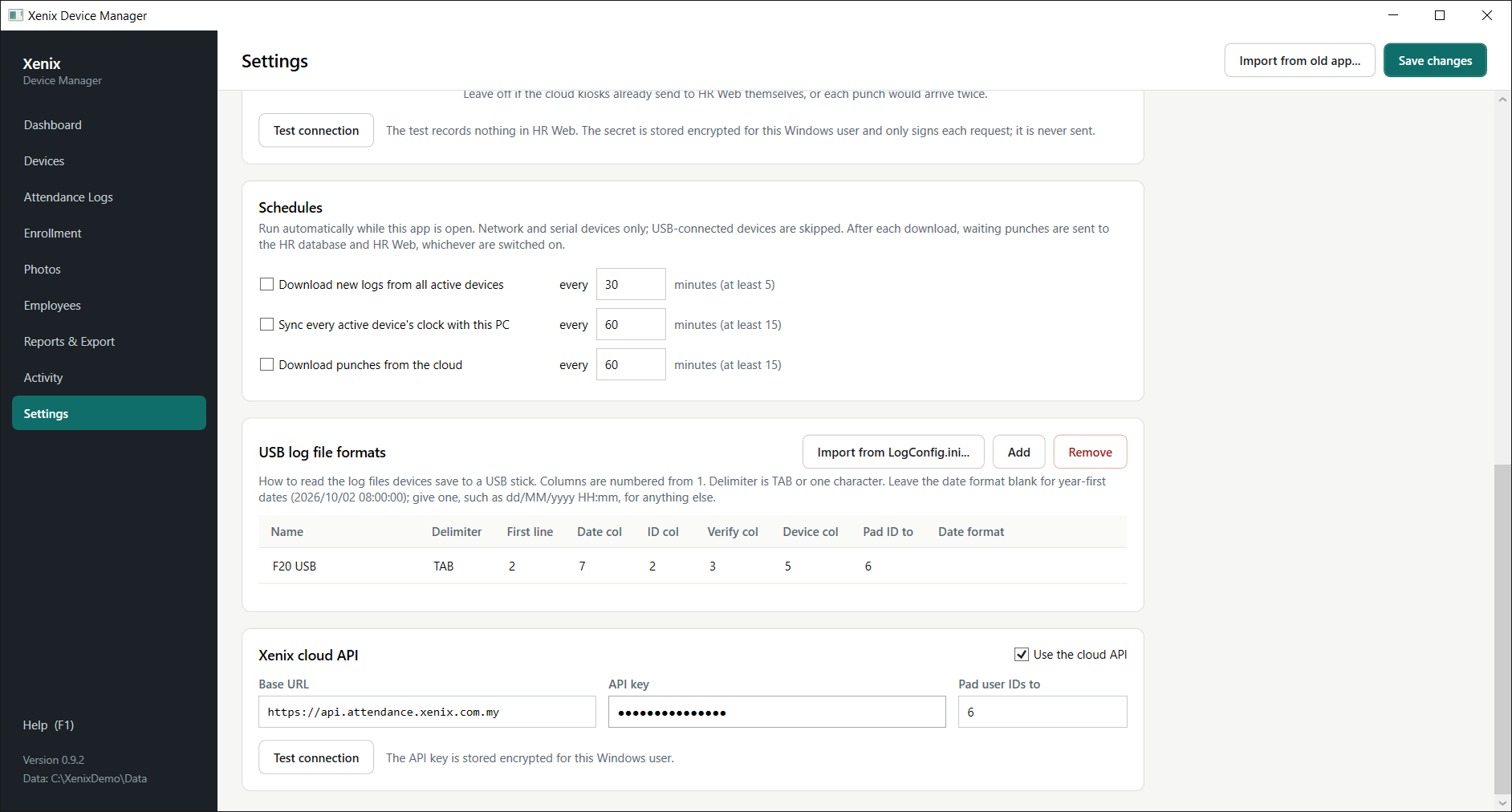
| Field | What it does |
|---|---|
| Use the cloud API | Switches the cloud tab and the cloud schedule on. |
| Base URL | The cloud API address, normally https://api.attendance.xenix.com.my. |
| API key | From Xenix. Stored encrypted. |
| Pad user IDs to | Pads cloud user IDs with zeros so they match card numbers in the HR database. |
| Test connection | Lists the cloud devices the key can see. |
13Sending to HR Web
Attendance goes to the tenant's attendance webhook on hr.xenix.com.my. HR Web matches each punch to an employee and works out daily attendance.
Before you start
- In HR Web, each employee's Enroll ID must be the same number as their user ID on the device. Punches with no match are still stored in HR Web, but under no employee.
- Enroll IDs must be numbers. Punches with other IDs are skipped and say why.
- Check how punches reach HR Web today. If a device's punches already arrive another way (a kiosk, an import), sending them from this app too would show them twice.
Set up
- Ask Xenix for your company's tenant code and attendance webhook secret. Keep the secret private: anyone who has it can send punches to your HR Web.
- In this app, open Settings → HR Web. Enter the tenant code and secret and press Test connection. It should say Connected to HR Web. The tenant code and webhook secret are right.
- Set Send punches from to today, choose the kinds of punch, tick Send punches to HR Web and press Save changes.
From then on, new punches are sent after every download and every scheduled download. The HR Web column on the Attendance Logs screen shows Sent for each one.
Sending past records
Use this for punches from before the Send punches from date, such as earlier months that never reached HR Web.
- Download from the devices first, so the app has the latest punches.
- Go to Attendance Logs → Past records to HR Web.
- Set From and To. Dates show as 1 Jan 2026, so there is no month/day mix-up.
- Tick only the devices whose punches should go. Inactive devices are listed too, because their punches are still stored. Tick USB or cloud punches only if you need them.
- Press Send to HR Web.... Nothing is sent yet. A confirmation shows how many punches will go, per device, how many were sent before and how many can't be sent.
- Read it, then press Yes. Progress shows under Last run, and the result is recorded in Activity. A small office's month takes a few minutes.
HR Web recalculates attendance for the days you send. Avoid days whose payroll is already final, or check them afterwards.
Clock-in and clock-out
Each punch is sent as a clock-in, a clock-out or unknown:
- A device set to IN or OUT on the Devices screen sends every punch as a clock-in or a clock-out. So does a USB import marked IN or OUT, and a cloud punch marked IN or OUT.
- Everything else is sent as unknown. HR Web then takes the first punch of the day as clock-in and the last as clock-out. This suits a time recorder used for both, which is the usual setup.
In HR Web's log list, unknown punches show a blue tag labelled Unknown. That is only how the list draws them; daily attendance is worked out from the times.
Sent once, and only once
- The app marks each punch when HR Web accepts it and never sends it again.
- Each punch also carries an ID made from its details. If the same punch reaches HR Web again anyway, HR Web ignores it and the app shows Already there.
- Neither check can tell that two different devices recorded the same person at the same moment. Don't send the same clock under two device entries.
When something goes wrong
Sending stops at once when HR Web can't take punches: a wrong secret or tenant code, no connection, or HR Web busy. Punches not sent stay Waiting and go on the next send. A punch HR Web turns down is marked Failed, will retry. After five failures in a row, sending stops. Messages are listed under Troubleshooting.
14Daily routine
With schedules on, most days need nothing. A quick check:
- Open the Dashboard. All devices online? Anything waiting?
- If a device is offline, check its power and network, then press Check all devices.
- On Attendance Logs, look for failed punches. Hover for the reason.
- On Employees, move any punches waiting in TRPENDING to the right people.
- Once a week, glance at Activity for red results.
New staff
- Enrol the person on a device (fingerprint, face or card) using the device's own menu.
- Make sure their HR employee has the same enroll ID (HR Web) or card number (HR database).
- To put them on other devices: Enrollment → Download from devices from the first device, tick the user and the other devices, then Upload to devices.
15Troubleshooting
Devices
| What you see | What to do |
|---|---|
| A device won't connect | Check the IP address, port, machine number and password against the device's menu. Ping the address. For devices reached over the internet, raise the timeout. |
| A box titled Microsoft Visual C++ Debug Library appears while talking to an F20 | Press Abort, never Ignore. Then on Enrollment, tick that device and press Scan devices to unlock its keypad. Report it with the Activity details. |
| Windows says a DLL is missing at start | Install the Microsoft Visual C++ 2010 x86 runtime. |
| New logs only downloads nothing, but people have punched | Another program, often the old app, already collected them. Use All logs on device; repeats are skipped. |
| Fingerprints or faces didn't upload | They were enrolled on the other family (F20 versus FK). Enrol the person again on that device. |
Names show as ? on FK devices | FK devices take ANSI text, as with the old app. Use plain Latin letters. |
HR database
| What you see | What to do |
|---|---|
| Punches stay Waiting | Sending is off, or the database can't be reached. Check Settings → HR database → Test connection. |
| Many Pending: no employee | Card numbers don't match employees. Check Pad IDs to on the device, then sort the punches out on the Employees screen. |
HR Web messages
| Message | Meaning and fix |
|---|---|
| HR Web has no active tenant with this code | The tenant code is wrong, or the tenant is switched off in HR Web. |
| This tenant has no attendance webhook secret in HR Web yet | Ask Xenix to set one up for your company. |
| HR Web turned down the webhook secret | The secret is wrong or has been changed. Ask Xenix for the current one and enter it again. |
| Could not reach HR Web / did not answer within 30 seconds | No internet, or HR Web is down. Punches wait and go on the next send. |
| HR Web is not taking punches right now | HR Web is busy or being updated. Punches wait and go later. |
| Enroll ID … is not a number HR Web can match | HR Web matches numeric IDs only. That punch is skipped. |
| Send to HR afterwards is greyed out | Neither the HR database nor HR Web is switched on and saved in Settings. |
| Punches appear in HR Web under no employee | The employee's Enroll ID in HR Web doesn't match the device user ID. |
Asking for help
On Activity, select the job that went wrong, press Copy details and paste it into your message. For a crash, attach the newest file from Open log folder.
16Status reference
HR database column
| Status | Meaning |
|---|---|
| Waiting | Not written yet. |
| Saved | Written to the TR table. Hover to see which one. |
| Pending: no employee | Written to TRPENDING because no employee has this card number. |
| Skipped: no ID | The punch has no enroll ID. Not written, as with the old app. |
| Failed, will retry | The write failed. It is tried again on the next send. Hover for the reason. |
HR Web column
| Status | Meaning |
|---|---|
| (blank) | Not covered by automatic sending: before the start date, a kind of punch not ticked, or HR Web sending is off. |
| Waiting | Will go on the next send. |
| Sent | HR Web accepted it. |
| Already there | HR Web already had this punch and ignored the repeat. |
| Skipped | Can't be sent, for example the enroll ID isn't a number. Hover for the reason. |
| Failed, will retry | HR Web turned it down. Tried again on the next send. Hover for the reason. |
17Glossary
- Punch
- One record of a person verifying at a device, with the time and how they verified.
- Enroll ID
- The user's number on the device. HR Web matches it to the employee's Enroll ID.
- Card number
- The enroll ID padded with zeros (when Pad IDs to is set), as the HR database stores it.
- Template
- A stored fingerprint, face, palm, card or PIN that a device uses to recognise a user.
- Family
- F20 devices (ST) or all others (FK). Fingerprints and faces only move within a family.
- TR / TRyyyyMMdd
- The attendance tables in the HR database, one table or one per day.
- TRPENDING
- The HR database table for punches with no matching employee.
- HR Web
- Xenix HR on the web, hr.xenix.com.my.
- Tenant
- A company account in HR Web, identified by its tenant code.
- Webhook secret
- A key from Xenix that proves the punches come from you.
- Local store
- This app's own database on the PC, where every punch lands first.